
New comet image processing workflow

One long-standing issue with comet imaging is that comets move with respect to the background sky, often with a sizable proper motion which causes trailing in images.

If the exposure is guided on the stars, trailing is inevitable. The alternative is to guide on the comet or have a mount with a motor capable of actively tracking the comet along both RA and declination, after configuring its orbital parameters. This feature is available in some advanced mount models such (e.g., 10 Micron), or through dedicated applications such as Skytrack, which uses your mount’s ASCOM driver.

Regardless of the tracking method, guiding on the comet will always produce the same result: comet fixed in the field of view and trailed stars. Registering a set of short, star-guided exposures on the comet will yield the same effect.

But when observing a comet visually, both with the naked eye and through a telescope, it will look still with respect to the stars in the background. Therefore, we want to achieve the same visual effect in our long-exposure images.

Back in 2018, my good friend and Pixinsight guru Edoardo Radice had come up with a comet alignment workflow in Pixinsight, described in detail in his YouTube tutorial (Italian only) and on my website at this link. That workflow of his, though very effective, is quite lengthy and complicated.

Recently, the availability of advanced AI-based tools has made life much easier, allowing me to develop a conceptually simpler solution. The detailed, step-by-step description is available below. The basic underlying principle is the separate processing of the comet- and stars-only image, which are blended together at the end (see figure below).
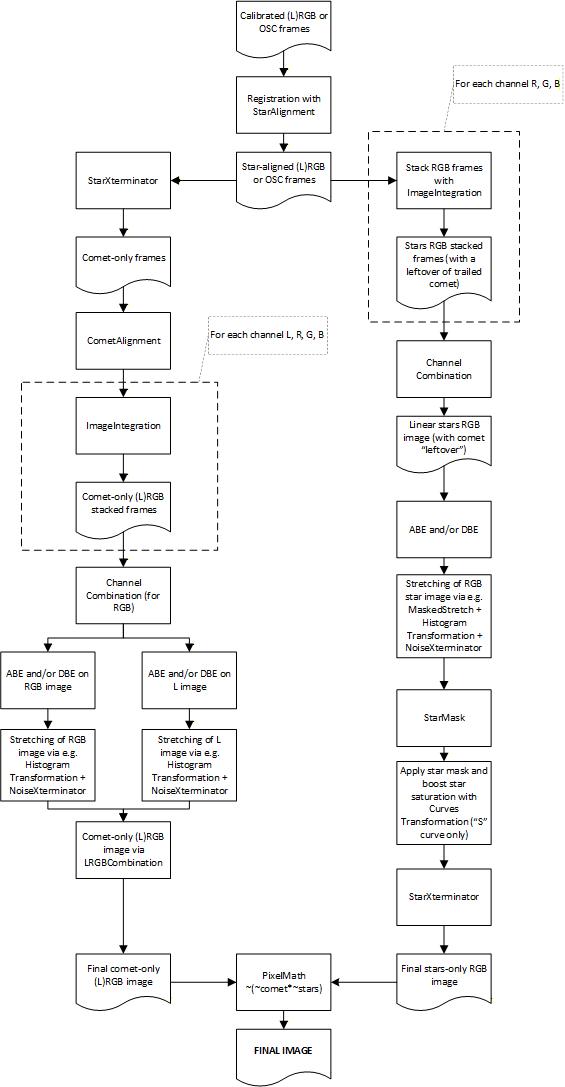
Comet processing workflow EN

Prerequisites:

  • In-depth knowledge of PixInsight’s principles and concepts 
  • A valid commercial license for the following Russell Croman Pixinsight tools: NoiseXterminator, BlurXterminator and StarXterminator.
  • A set of correctly calibrated star-guided frames.

BlurXterminator e NoiseXterminator are recommended but not compulsory, while StarXterminator practically is. Alternatively, one will have to use a similar tool such as Starnet++, but please be warned that performance is not on a par with Croman’s tool.

The following version of the procedure is meant for mono cameras with separate filters (LRGB or RGB only). The concept is easily applicable to OSC cameras, DSLRs or mono cameras used with one single filter (L, typically).

Steps to follow:

  1. Align all calibrated frames on the stars with StarAlignment, all channels (L, R, G, B) together. This step is usually performed automatically by WBPP.
  2. [optional] Deconvolve all star-aligned frames with BlurXterminator and save them to one single folder,e.g., deconv or registered_deconv.
  3. Using StarXterminator and an ImageContainer, strip all star-aligned frames (regardless of the channels) from step 1 or 2 of the stars they contain, and save them into a folder, e.g. starless.
  4. Align all raw star-stripped frames from starless with CometAlignment. All frames can be aligned together, regardless of the channel. [ Note: the tool itself will determine the correct frame order based on acquisition time]. Pick one frame about halfway into the list as the reference frame. Save the set of comet-aligned frames to one folder, for example CA (or CA_deconv if step 2 was performed).
  5. For each channel L, R, G, B:  sum all comet-aligned frames (from CA o CA_deconv) with ImageIntegration. Recommended parameters: Pixel Rejection: Winsorized Sigma Clipping, Sigma high 2.0, Sigma low 1.5 [Note: the reason for these settings is to apply a very selective pixel rejection to get an as smooth as possible of a background].
  6. Rename the integrated channels as comet_L, comet_R, comet_G and comet_B respectively.
  7. Take comet_R, comet_G and comet_B and merge them with ChannelCombination into one RGB image, which we call comet.
  8. Run the comet image through one or more iterations of AutomaticBackgroundExtractor and/or DynamicBackgroundExtractor, depending on the quality and properties of the starless background sky. This step will most likely neutralize the background of the RGB image.
  9. Also run ABE and/or DBE on comet_L if needed.
  10. Delinearize comet and comet_L with HistogramTransformation, in such a way that the median value of the image is about the same for comet_L and for each of comet’s RGB channels.
  11. [optional] run comet and comet_L through NoiseXterminator. This way, it will be much easier to remove any remainders of star trails from the background with CloneStamp.
  12. Now, it's time to process the stars. To this end, let’s go back to the groups of star-aligned linear images for the three color channels R, G, B. Sum the frames for each channel independently with ImageIntegration to obtain stars_R, stars_G and stars_B, with the same parameters as in step 4.
  13. Merge all three channels with ChannelCombination into one RGB image, which we’ll call stars.
  14. Accurately calibrate stars's colors by using the ImageSolver script and SpectroPhotometricColorCalibration. The result is a plate-solved linear image containing the stars and a residue of the blurred comet.
  15. Delinearize stars, for example with a combination of MaskedStretch and HistogramTransformation.
  16. [optional] (optional denoise and then) create a star mask with StarMask. [note: denoising the image with NoiseXterminator beforehand will make it easier to generate the star mask]
  17. [optional if a star mask was created in step 15] apply the star mask on stars (which has just been delinearized), and boost star color saturation with CurvesTransformation (saturation only). Turn off and throw away the star mask.
  18. Apply StarXterminator on stars with “unscreen stars” checked. Keep the star-only image, stars_stars for example, and throw away the starless leftover.
  19. If all went well, we are left with two images, one containing the (L)RGB comet (comet) and a stars-only one (stars_stars). Bring PixelMath up and type the following expression in the RGB/K section: ~(~comet*~stars_stars) and "Create new image" checked. Run the process.
  20. In step 19, both the comet and the stars were finally blended together. Minor adjustments to the background sky through CurvesTransformation or HistogramTransformation might be needed.

A worked example can be directly downloaded from this link.

Though this workflow is probably not trivial, I think it has the big advantage of not requiring juggling with comet masks and the like, and in my view is also probably simpler from a conceptual standpoint.  Anyway, I'd love to hear your comments and feedback!

Leave a comment